One key. One app.
Assign any key or key combo to any Mac app and jump to it instantly — running apps come to the front, closed apps launch, and every shortcut sits right on the keycap that opens it.

See it in action
F1–F4 switch between Claude, ChatGPT, Chrome and Figma — no Dock hunting, no ⌘Tab cycling through everything you have open.
Rendered from QuickOpen's real UI components — the same keyboard, overview and launch hint you get in the app.
Built around one idea: your apps, on your keys
QuickOpen lives in your menu bar and stays out of the way — until the exact moment you press a key.
One key, one app
Bind a global shortcut to any .app — a combo like ⌥⌘S or a single key like F5. Running? It comes to the front. Not running? It launches. Already in front? Press again to hide it.
Shortcut overview
Press ⌃⌥Space and every app appears in a grid at the center of your screen, just like ⌘Tab — hold and release, or toggle and pick with the arrow keys.
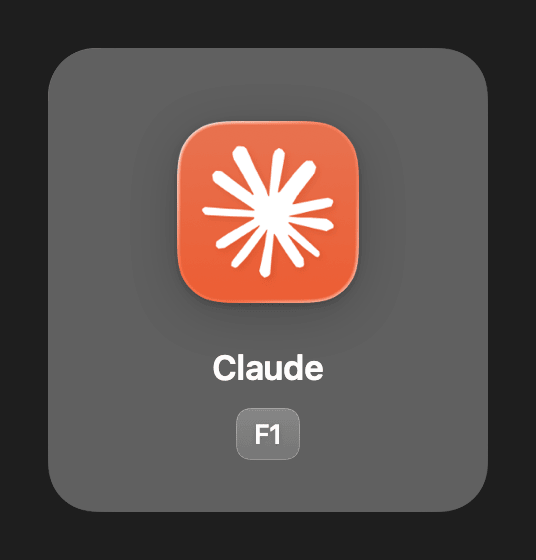
Launch hint
Each time you use a shortcut, the app's icon and its keys flash briefly on screen, so the bindings quietly stick in your memory. Position and duration are adjustable.
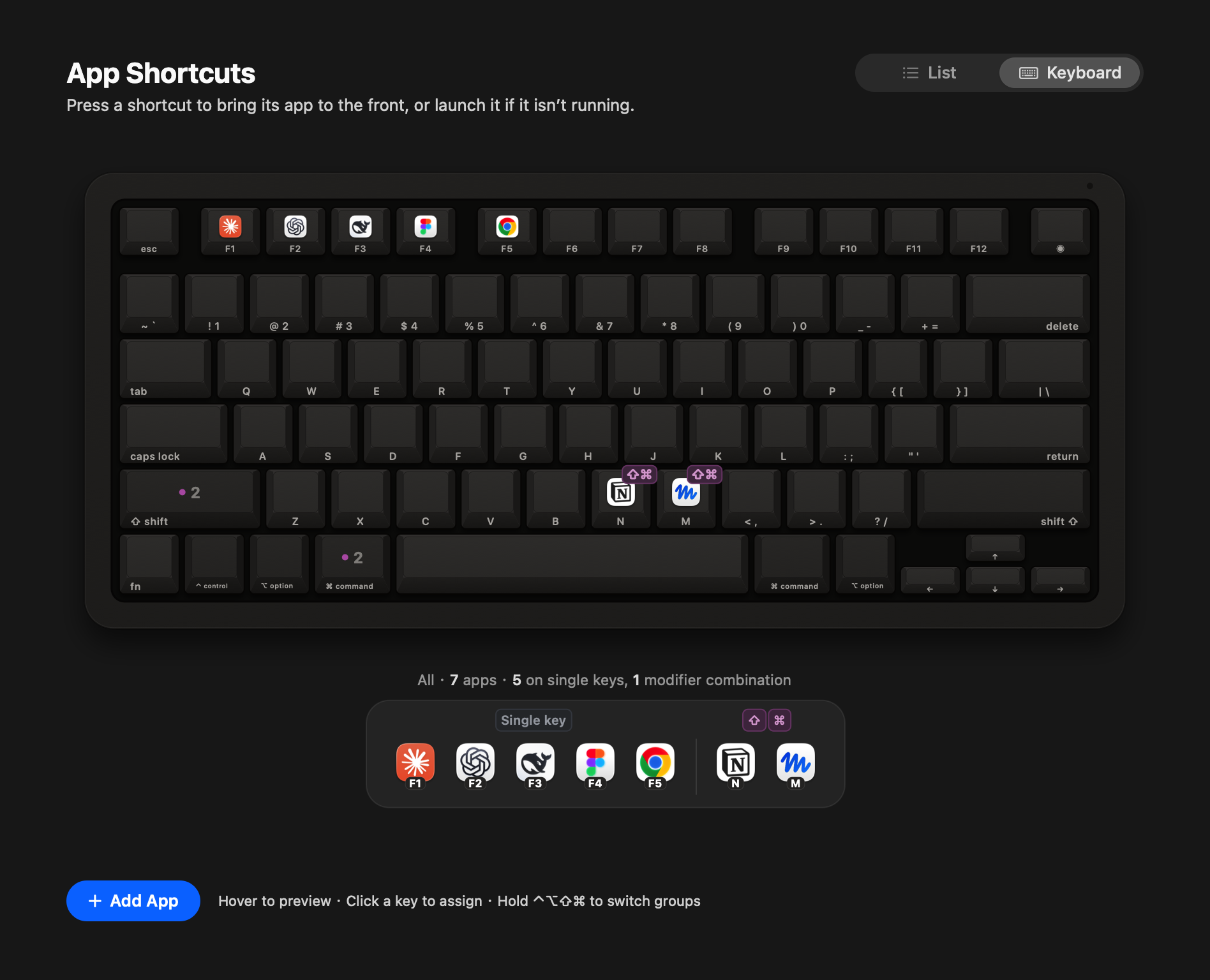
Keyboard view
Your shortcuts drawn on a sculpted Mac keyboard, each app's icon sitting on its key. Hover to lift a key and dim the rest; click a free key to bind an app to it.
Conflicts, handled
Conflict detection warns you when a shortcut is already taken — by QuickOpen or by another app — before it silently stops working. Drag to reorder, drag apps in from Finder.
Liquid Glass, gracefully
A Liquid Glass UI on macOS 26, with a graceful frosted fallback on macOS 13–15. Follows the system appearance, or pin Light / Dark in Settings.
Every shortcut, right on the keycap
No list to memorize. Open the Shortcuts tab and your apps are simply there — sitting on the keys that open them.
- Hover an app to lift its key, press down its modifiers and dim everything else.
- Grouped in a Dock by modifier combination — single key, ⌥, ⌃⌥, ⌥⌘… — showing system-taken keys and the ones still free.
- Hold ⌃ ⌥ ⇧ ⌘ on your real keyboard to switch groups live. Click a free key to bind an app.
- List or keyboard — switch in the top-right corner; QuickOpen remembers your choice.
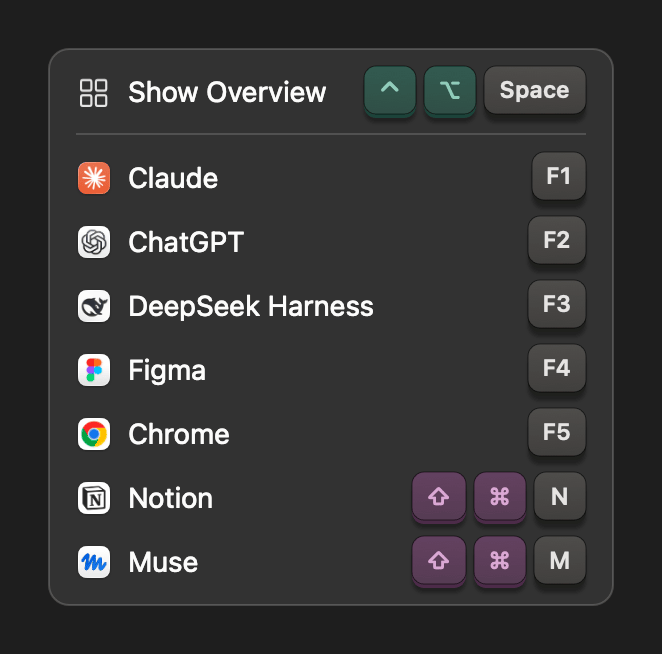
⌃⌥Space — the whole set, at a glance
Forgot which key opens what? The overview shows every app and its shortcut in one grid, exactly when you need it.
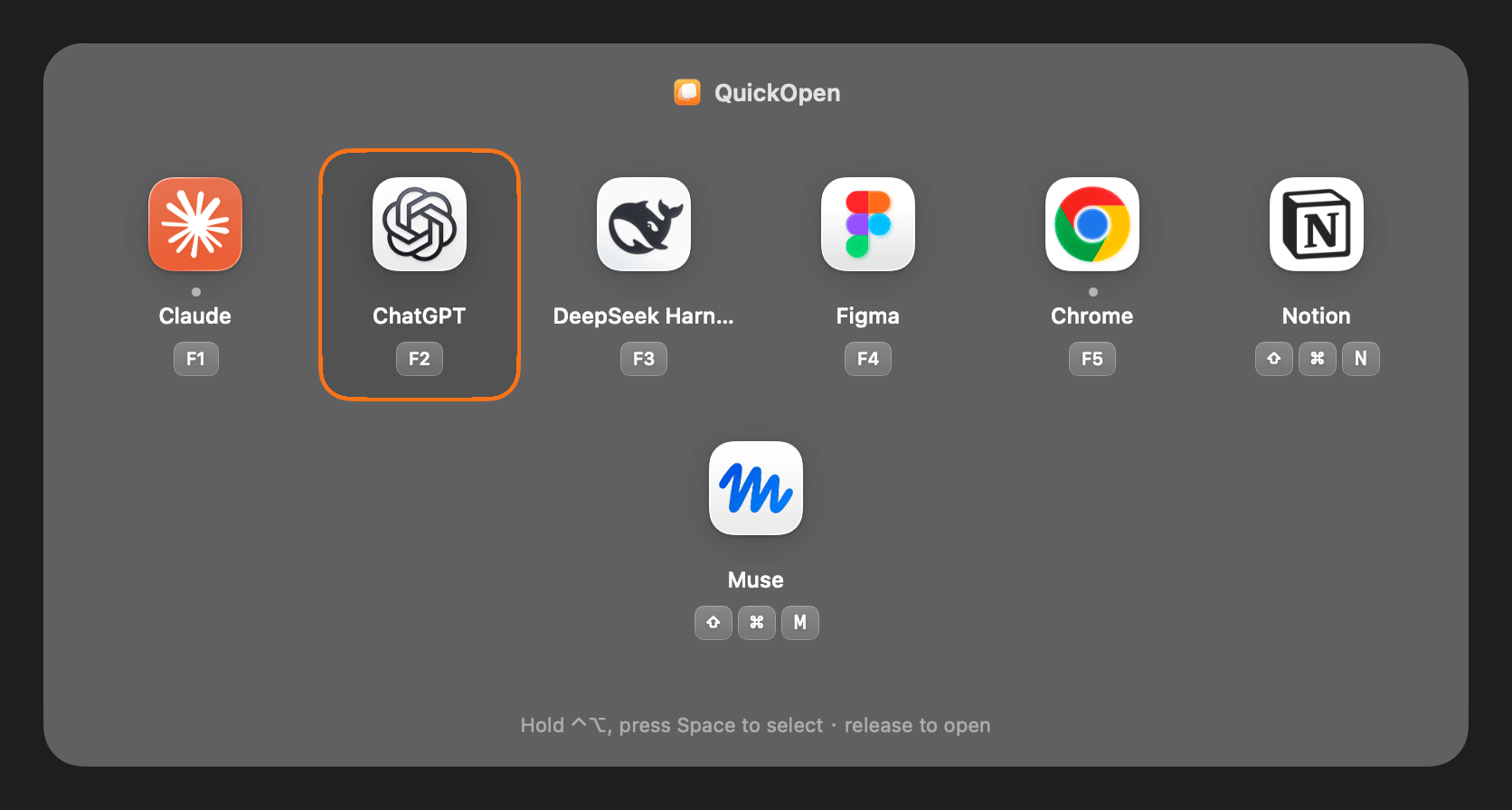
Hold mode · default
Hold ⌃⌥ and tap Space to move the selection; release to open the app — or close the overview if nothing is selected. It feels like ⌘Tab, but for your chosen apps only.
Toggle mode
Press ⌃⌥Space once to show the overview, again (or Esc) to hide it. Arrow keys select, ↩ opens. Toggle mode never needs any permission — see the note in the FAQ.
Set up in under a minute
Three steps, once. Then your apps are a keypress away, forever.
Add your apps
Open QuickOpen from the menu bar and click Add App… — or just drag apps in from Finder.
Record a shortcut
Press the key or combo you want — F-keys are a safe pick for single keys. Esc cancels, Delete clears.
Press it anywhere
From any app, any Space, any moment: one press and you're there. Press again to hide.
Private and light, by construction
Global shortcuts use Carbon's RegisterEventHotKey — the classic Mac API that needs no Accessibility permission. Apps are activated through NSWorkspace, exactly like clicking their Dock icon. No third-party code runs in QuickOpen at all.
# First launch of a non-notarized build:
# right-click QuickOpen → Open (once), or:
xattr -dr com.apple.quarantine /Applications/QuickOpen.app

# Build from source (Xcode 26 / Swift 6):
git clone https://github.com/simmzl/QuickOpen.git
cd QuickOpen
swift test
./scripts/build-app.sh   # → dist/QuickOpen.app
Releases are built by GitHub Actions from the public source — universal binaries for Apple Silicon and Intel, with SHA-256 checksums.
Install in three drags
- Download QuickOpen-<version>.dmg from the latest release.
- Open it and drag QuickOpen into Applications.
- Launch it — the icon appears in your menu bar. Requires macOS 13 Ventura or later.
FAQ
Why does Hold mode ask for Input Monitoring?
App shortcuts themselves need no permission at all. Only the overview's Hold mode asks once for Input Monitoring, so it can reliably notice when you release ⌃⌥ no matter which app has focus. QuickOpen listens only to modifier-key changes, only while the overview is on screen, and never records what you type. Without it, Hold mode still works but may occasionally wait for a mouse move; Toggle mode never needs it.
Can I use a single letter key, like N?
You can — but it will be captured system-wide, so you won't be able to type that character anymore. Function keys (F1–F20) are the safe choice for single-key shortcuts; letters and numbers work best inside a combination like ⇧⌘N.
Does it work on Intel Macs?
Yes. Releases are universal binaries for Apple Silicon and Intel, and run on macOS 13 Ventura or later. On macOS 26 you get the Liquid Glass UI; on 13–15 it falls back gracefully to a frosted look.
Where are my shortcuts stored?
In ~/Library/Application Support/QuickOpen/shortcuts.json — a plain file you can inspect or back up. If it ever becomes unreadable, QuickOpen backs it up as shortcuts.corrupted-<time>.json instead of overwriting it.
Your apps are one key away.
Free, open source, and about a megabyte. Give QuickOpen a star if it earns a place in your menu bar.